.png)
Tag Table
The tag table in an ICC profile contains a series of data fields that are variable length and contain many different types of information. Text, color, device settings, descriptions and other information are contained in tags. The ICC profile specification requires some tags to be supplied in each type of profile. Additional standard or private tags can be supplied by the profile creation software or editing applications and may be used by CMM’s to render color differently.
ColorThink recognizes all ICC-approved tags and a descriptive explanation is given for each of these tag types. ColorThink 4 contains a regularly-updated reference system which will identify all tag names and types published by the ICC and all tag types registered by outside organizations with the ICC. This reference system is updated regularly and included with ColorThink software releases as needed.
Name
The name (also known as the tag signature) is the official name as specified in the ICC specification.
Type
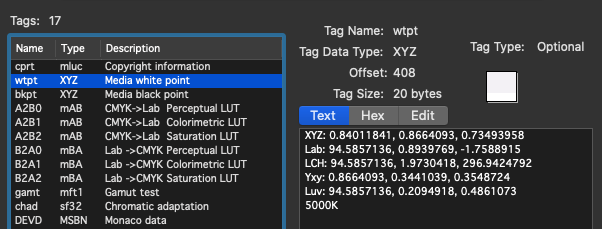
The type describes the different functions of the tag as defined by the ICC.
Examples include "text" "desc" "mft2". Click on a tag for more information including where in the profile the tag resides and a summary of the tag's contents.
“text” data types can be exported as text files and opened in text editors, spreadsheet programs like Excel, or even opened into the Color Worksheet. Some profile-building applications embed the original measurement and reference data in the profile in the form of “Text” tags. These lists can be exported as text files and also re-opened into the Color Worksheet for analysis or graphing. (Click the "Open in Worksheet" button.)
Color tags are shown in several different coordinate systems and a color tab displays the color for viewing or graphing.
Compressed ZXML tags are automatically decompressed by ColorThink for viewing and exporting.
Some profiles contain other profiles embedded into a tag. Examples include some device link profiles created by Left Dakota and ICC v5 profiles embedded inside ICC v4 profiles (Onyx and i1Profiler). ColorThink extras these embedded profiles for saving to disk or, in the case of device links, to display the source and destination color tabs correctly in the Profile Inspector and Color Worksheet.
Columns in this table can be re-ordered by clicking on the column heading. Once re-ordered, click the “#” header to restore the sort to the order stored within the profile. ColorThink saves profile tags in the original order found in the file, not according to the currently displayed sort.

NEW!
Editing White Point and other XYZ tags
PrePress Pack Feature 
A new feature of ColorThink 4 is the ability to edit color tags. The editing of the white point tab can be useful in many situations.
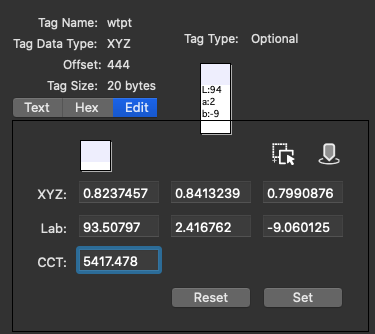
A white point tag can be edited to reflect a different white point for simulation when proofing.
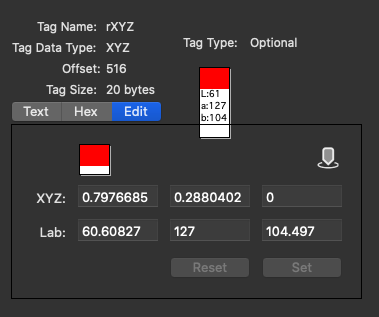
Some colorant tags can be edited to make working space matrix profiles larger or smaller as desired.
Values can be entered manually in XYZ, Lab or CCT data fields.
The CCT (Correlated Color Temperature) value represents the equivalent white point in Kelvin temperature values.
A list of colors, or a different profile can be dropped into the editor, and the white point will be automatically extracted.
As ColorThink 4 supports measuring, a measurement can be taken to directly alter a tag’s color.
 A “one-spot target” definition reference is included in ColorThink’s built-in target definitions for this purpose.
Private Tags
Private tags are unique to the profile creator or editor. Some private tags are recognized by ColorThink. Private, unrecognized tags are marked as such. If a profile manufacturer is willing to make their private tag information available to CHROMiX, we will consider writing tag interpreters for their tags into future versions of ColorThink. Please contact us for more information.

Try out the "Compare Profile Structures" procedure in the ColorSmarts Guide to compare the tag list of two different profiles.
Altering Profile Tags
Pro Feature
Warning! The following procedures can render a profile useless if used incorrectly. Always save a backup copy of your profiles before making any changes.
Deleting tags
A tag can be deleted from the tag table by highlighting the tag and clicking the Backspace key (Delete on some keyboards).
Possible purposes for deleting tags:
This can be useful in eliminating extraneous tags when repurposing profiles.
If the profile will be publicly distributed, you may want to eliminate unused tags to avoid confusion and shrink the profile size.
Some color data sets do not allow public distribution, so deleting these from the profile is required for compliance.
It is possible to delete tags that are required by the ICC specification and therefore render the profile useless. Be careful! See the http://www.color.org/for more information.
Copying tags from profile to profile
Tags can be swapped from one profile to another by clicking and dragging a tag from one open profile inspector window to another.
In most cases, the profile must be saved (File > Save As...) in order for the changes to be updated when altering tags.